Print Maps
After successfully processing a dataset from the cloud interface, you can export the resulting maps and get them ready for print with the help of QGIS. Below you'll find an overview of the workflow.
1. Export Your Map
- From the cloud interface expand a task and open the Map view.
- Open Layers panel from the top right corner of the screen, optionally adjust the histogram sliders and any other visualization option as desired.
- Press the Export GeoTIFF (RGB) button.

2. Import GeoTIFF Into QGIS
note
You can install QGIS on your computer from qgis.org. It's free.
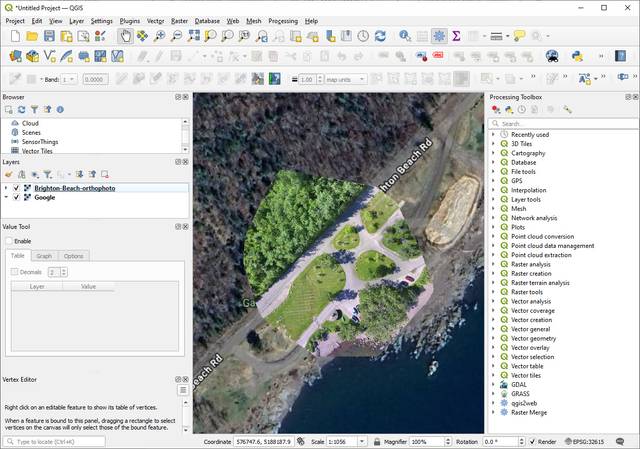
- Open QGIS.
- (Optional) Add a basemap layer like Google Maps Satellite by following these steps.
- Drag & drop the exported GeoTIFF into QGIS, or press Layer ⮕ Add Layer ⮕ Add Raster Layer and select the GeoTIFF.
3. Setup a Print Layout
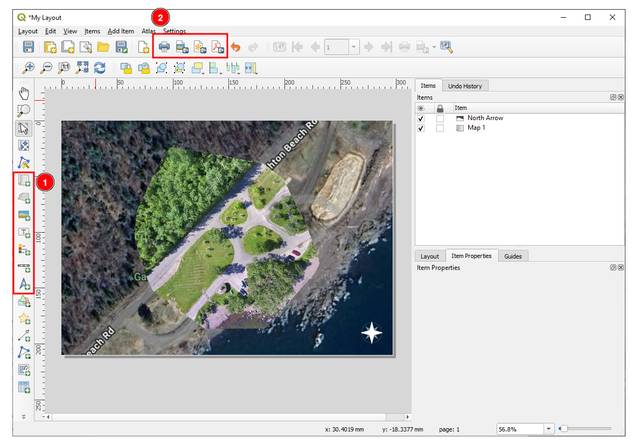
- From the Project menu, click New Print Layout. Type a name for your layout.
- From the left side of the print layout, press the Add Map button (1), click anywhere on the page and press OK. Adjust the map so that it covers the entire page.
- Optionally add more elements to the map, like a north arrow, additional images, symbols, texts, etc.
- Once you're satisfied with the result, from the Toolbar (2) export or print your map.
For an in-depth guide on using the QGIS Print Layout, see the official QGIS documentation.